Checked against Facebook’s current Marketplace interface: July 2026. Menu labels can shift as Facebook updates the app.
What to Know
- “No listings found” is almost never your account being banned. The usual culprits are a stale app cache, a browser extension blocking Marketplace, or a location Facebook can’t read.
- Fastest fix that works most often: force-close the Facebook app and reopen it, then make sure the app is updated. On a computer, open Marketplace in a private/incognito window to rule out ad blockers.
- If every fix fails and only your Marketplace is empty, check Account Quality — your Marketplace access may be limited, which is a separate problem with its own appeal.
“No listings found” means Marketplace loaded but returned nothing — no local items, no search results, sometimes not even your own listings. That’s different from Marketplace failing to open at all. When results come back empty, the fix is almost always on your device or your settings, not a ban.
Work these fixes in order
Start at the top. Most people are fixed by step three.
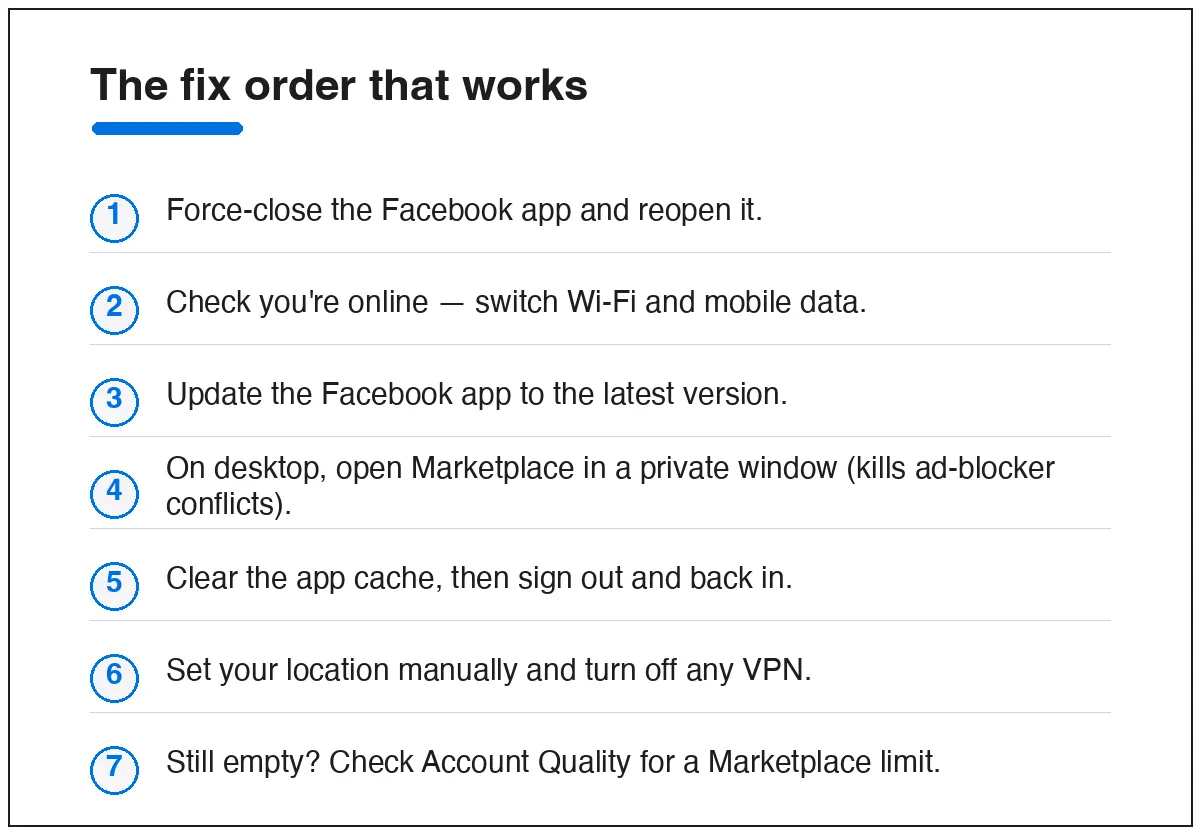
1. Force-close and reopen the app
A half-loaded Marketplace session shows nothing. Swipe the Facebook app fully closed (don’t just background it) and reopen it. This alone clears most “no listings” glitches.
2. Check your connection
Marketplace needs a stable connection to pull local results. If you’re on weak Wi-Fi, switch to mobile data (or the reverse) and reload. A single bad network is a common silent cause.
3. Update the Facebook app
An outdated app build often breaks Marketplace after Facebook changes something server-side. Open the App Store or Google Play, search Facebook, and tap Update if it’s offered.
4. On desktop, kill extension conflicts
Ad blockers and privacy extensions frequently mistake Marketplace tiles for ads and strip them out, leaving an empty page. Open Marketplace in a private/incognito window (extensions are off there by default). If listings appear, an extension is the cause — allowlist facebook.com or disable it for the site.
5. Clear the app cache, then re-log
On Android: phone Settings › Apps › Facebook › Storage › Clear cache. On iPhone there’s no per-app cache button, so delete and reinstall Facebook instead. Then sign out of Facebook and back in to refresh your session.
6. Fix your location
Marketplace shows items near you, so a wrong or missing location returns nothing. Set your location manually in Marketplace (tap the location filter and pick your city), and turn off any VPN — a VPN can drop you into a region with no local inventory, or one where Marketplace isn’t available.
7. Check for a Marketplace limit
If only your account sees no listings while Marketplace works fine on someone else’s phone, your access may be restricted. Go to Settings & privacy › Settings › Account Quality (also at facebook.com/accountquality on desktop) and look for any note about Marketplace. If it’s limited, use the appeal shown there.
Quick answers
Why does Marketplace say “no listings found” only for me?
Most often a device or app issue — cache, an outdated app, or an extension. If it persists across a fresh app and a different network, check Account Quality for a Marketplace restriction.
Does a VPN break Facebook Marketplace?
It can. A VPN can place you in a location with no nearby listings, or one of the countries where Marketplace isn’t offered. Turn it off before troubleshooting.
Is “no listings found” the same as being banned?
No. A ban shows a specific message about losing Marketplace access. An empty results page is a loading or filter problem in almost every case.
I updated and cleared cache and it’s still empty. Now what?
Delete and reinstall the Facebook app, then sign back in. If that fails too, test Marketplace on another device — if it works there, the problem is your original device, not your account.
If your own items load but buyers can’t find them, that’s a different issue — see why your Marketplace listing isn’t showing up. And if Marketplace won’t open at all, start with Facebook Marketplace not working.